© 2026 Seed Collaborative LTD. All rights reserved.
© 2026 Seed Collaborative LTD. All rights reserved.
© 2026 Seed Collaborative LTD. All rights reserved.
Instructions. A practical guide to applying the aconia system.
Instructions. A practical guide to applying the aconia system.
01_Select your mockup
01_Select your mockup
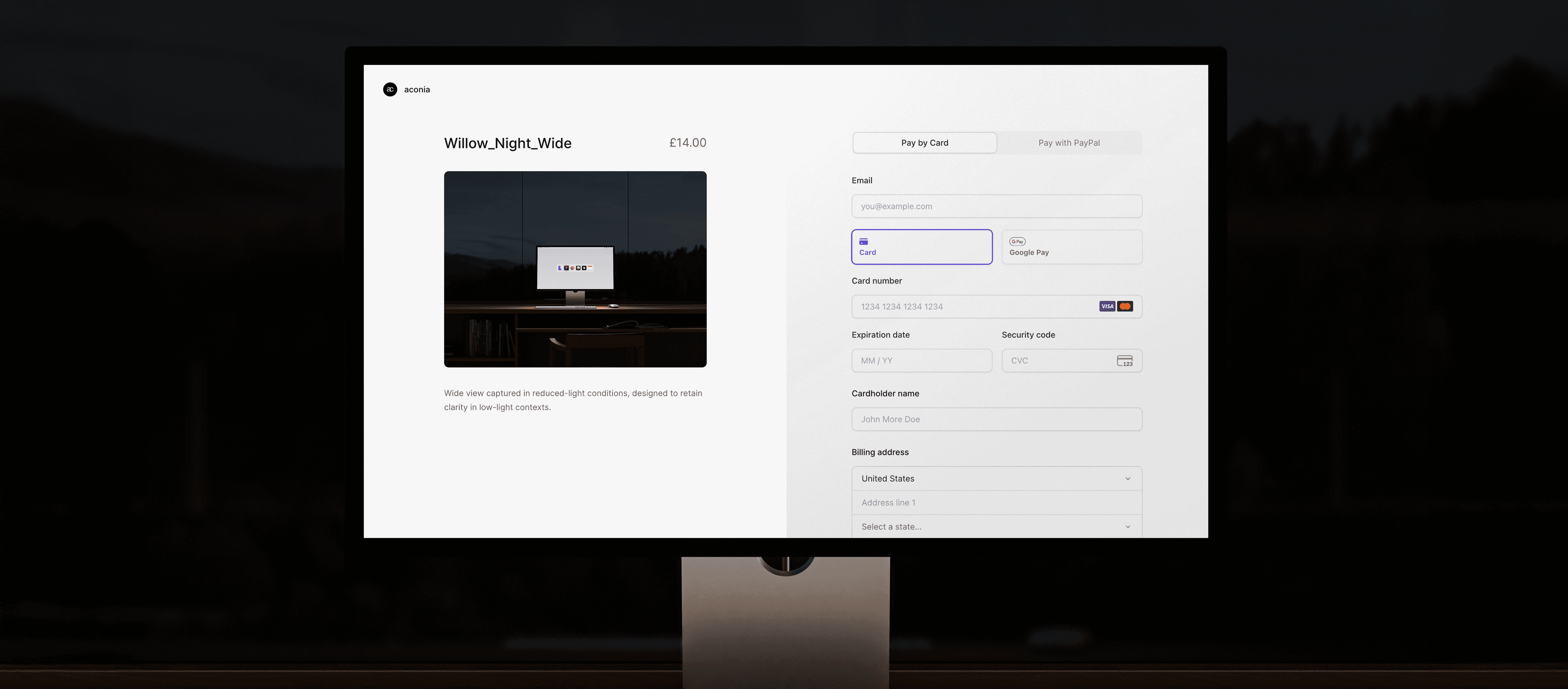
Select the mockup you want to use and complete checkout. You’ll receive a receipt and a download link by email once the purchase is complete.
Select the mockup you want to use and complete checkout. You’ll receive a receipt and a download link by email once the purchase is complete.
02_Open in Photoshop
02_Open in Photoshop
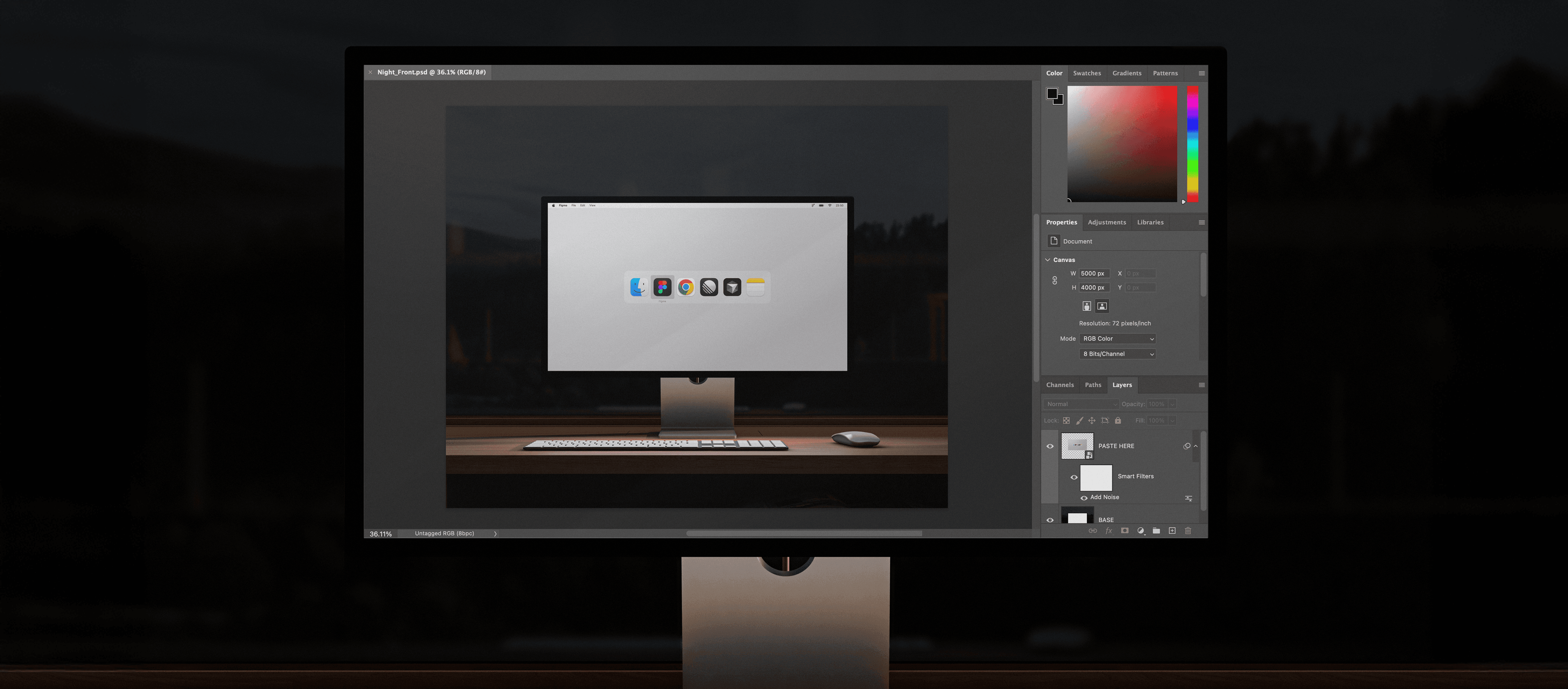
Download the file and open the PSD in Adobe Photoshop. In the Layers panel, locate the smart object layer highlighted in grey and double-click to open it.
Download the file and open the PSD in Adobe Photoshop. In the Layers panel, locate the smart object layer highlighted in grey and double-click to open it.
03_Insert your interface
03_Insert your interface
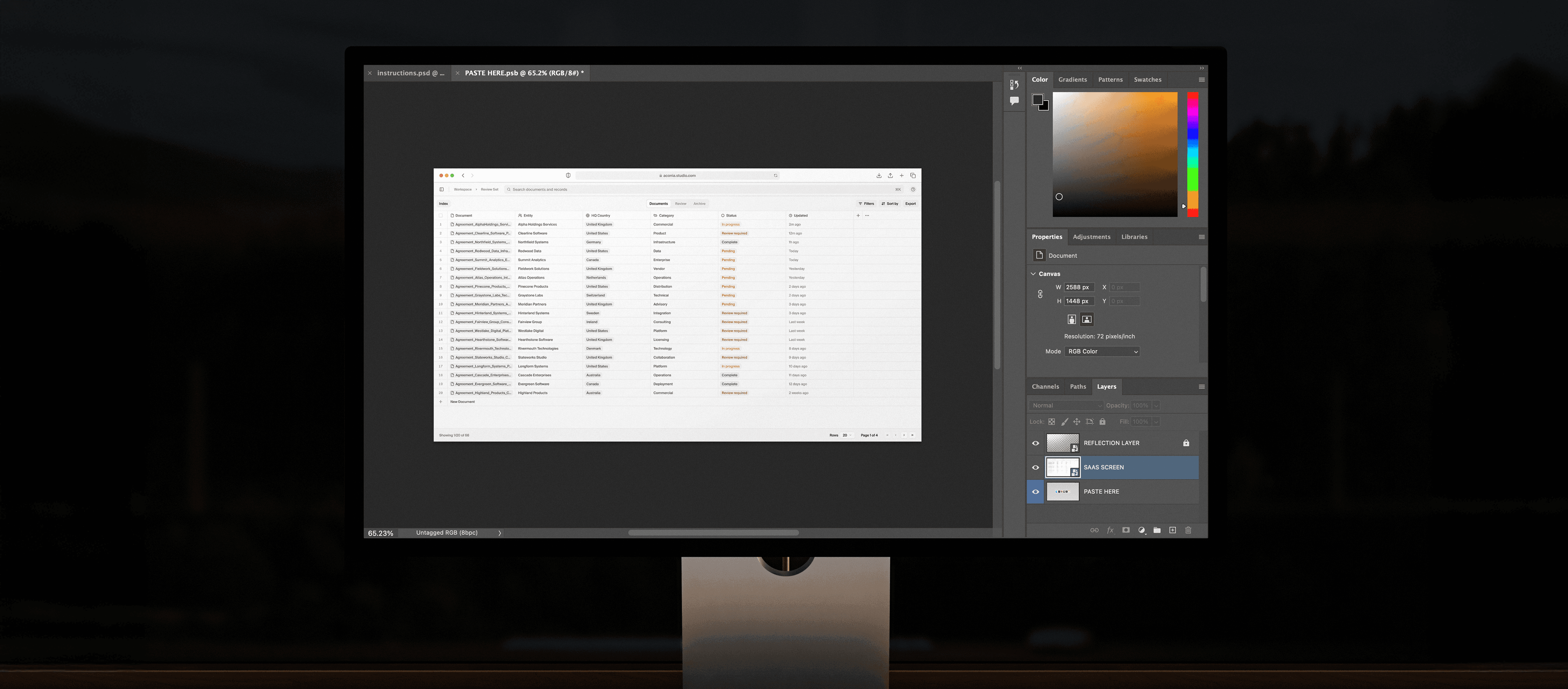
Paste or drag in your interface and position it beneath the reflection layer. Unlock the reflection layer and adjust opacity or blending to achieve the desired finish.
Paste or drag in your interface and position it beneath the reflection layer. Unlock the reflection layer and adjust opacity or blending to achieve the desired finish.
04_Save and preview
04_Save and preview
Save the smart object (⌘S), then return to the main file to preview the result. Make any positioning or visual adjustments as needed.
Save the smart object (⌘S), then return to the main file to preview the result. Make any positioning or visual adjustments as needed.
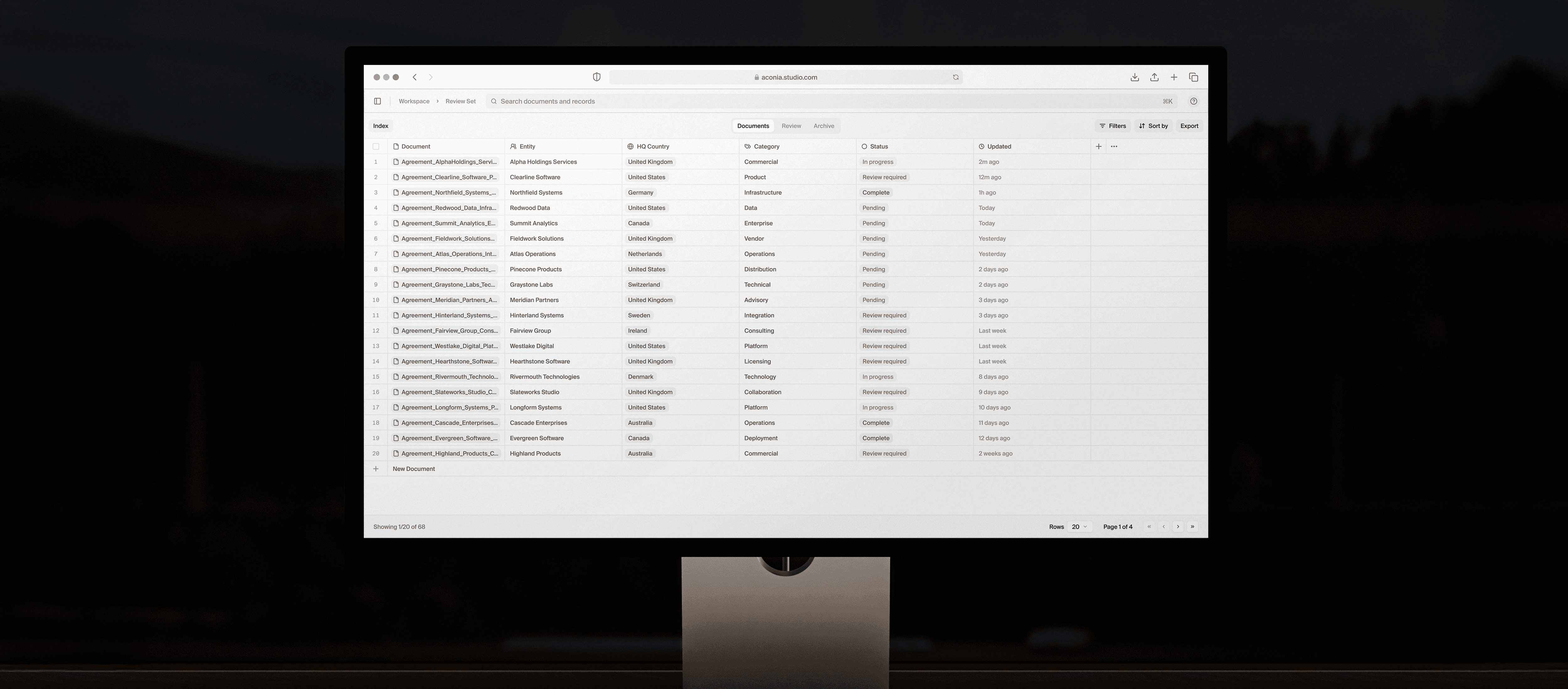
05_Export and use
05_Export and use
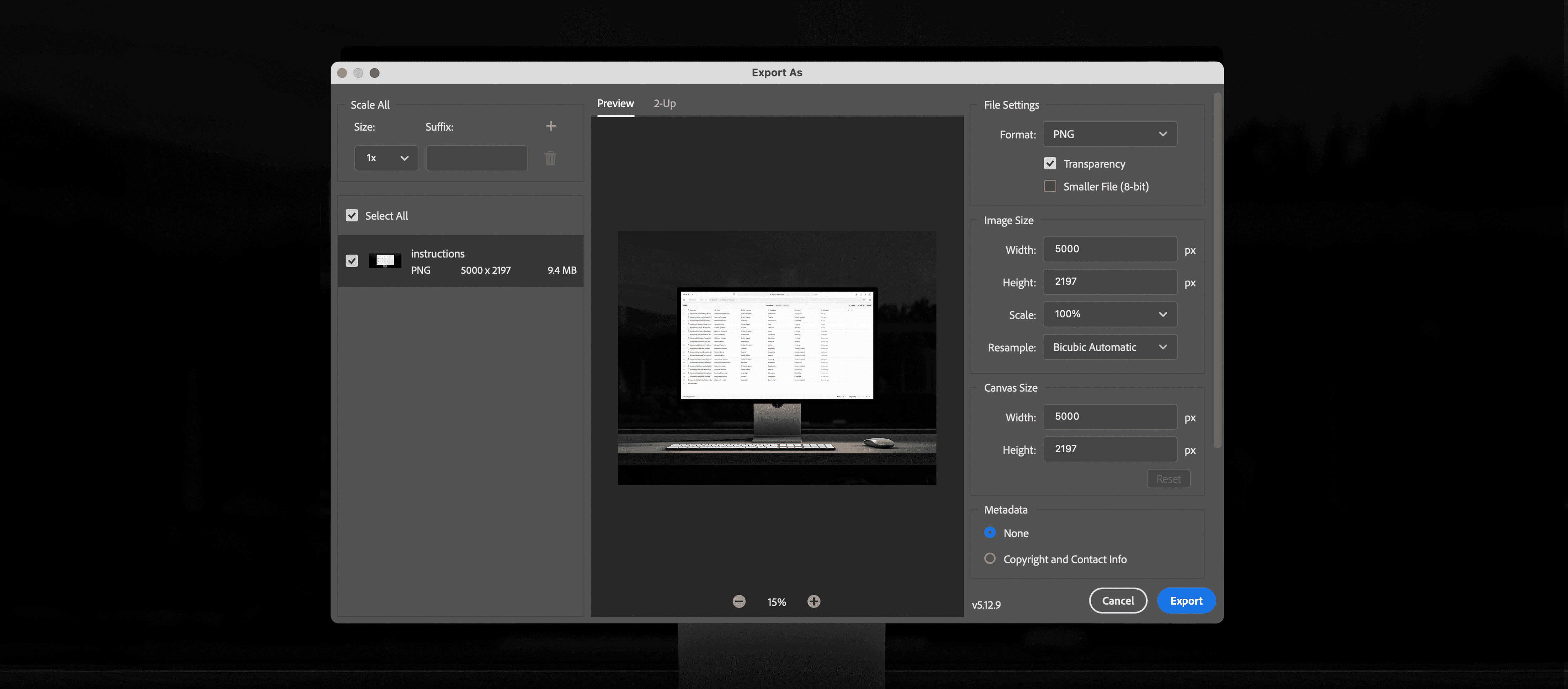
Export the final image using File → Export As. Choose your preferred format and resolution, then save for use across web, decks, or presentations.
Export the final image using File → Export As. Choose your preferred format and resolution, then save for use across web, decks, or presentations.